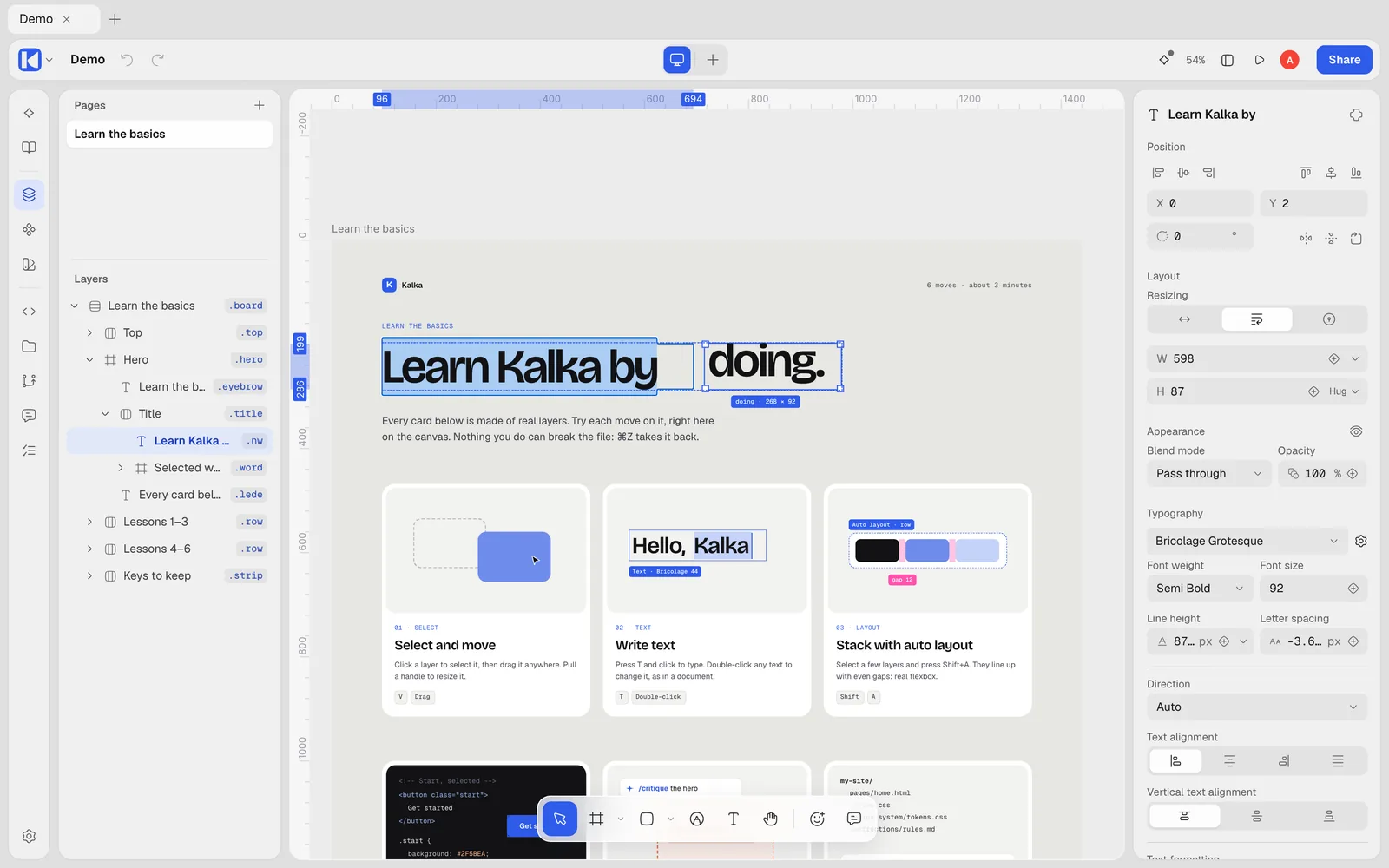
The Design panel on the right shows the properties of the selection. Every property you set is a CSS declaration on that layer: there is nothing to translate later.
Preview before you pick
Hover a choice in a list and the canvas shows it on your selection before you click. This works for:
- blend modes, of the layer and of a fill;
- font family and font weight;
- text case, and horizontal and vertical text alignment;
- shader presets;
- color and number variables, when you pick one for a field.
Move the pointer away and the design goes back to how it was. Nothing is saved, undone or sent to the people you work with until you choose.
Position
X, Y, Width, Height and Rotation, with buttons to align the selection, flip it, or turn it 90°. Arrow keys nudge a layer by 1 px, or 10 px with Shift.
Constraints decide what a layer does when its parent frame is resized: stick to the left, right, both sides, the center, or scale; and the same for top and bottom.
Layout
A frame can lay out its children for you. Click Add auto layout, or press Shift A, then choose the Flow:
| Flow | CSS |
|---|---|
| Freeform | children placed where you put them |
| Vertical layout | display: flex; flex-direction: column |
| Horizontal layout | display: flex; flex-direction: row |
| Grid layout | display: grid, with columns and rows |
Then set the Gap between children (or Auto gap to spread them), the padding on each side, alignment, and Wrap layout for a row that wraps onto new lines. A grid takes columns and rows, each sized in fractions of the free space (fr) or in pixels. Clip content hides what overflows the frame.
Size
Each axis is Fixed, Hug (as big as the content) or Fill (as big as the parent allows). You can add a min and max width or height. Text layers grow in width, grow in height, or keep a fixed size.
CSS as written
A layer keeps the CSS it was given, even when a design field could not express it: width: 50%, padding: 1.5rem, clamp(), a transition or a cursor. That happens when the CSS comes from pasted or imported HTML, or from an agent. Kalka draws it, exports it, and saves it as written, in a Kalka folder and in a .fig file. When you then change that property in the Design panel, your value replaces it.
Appearance
Opacity, Blend mode, Radius (one value, or one per corner) and Corner smoothing for softer, rounder corners. Number keys set opacity quickly: 5 is 50%, 0 is 100%.
Fill
A fill is a solid color, a gradient (linear, radial, angular or diamond, with as many stops as you like) or an image (fill, fit, crop or tile). A layer can stack several fills. The color picker works in RGB, HSL, HSB or OkHCL, and any color can come from a variable.
Stroke
A border inside, centered on, or outside the edge, with its weight, the sides it covers, and dashes. Lines and paths also take caps, including arrows, and joins.
Effects
Drop shadow, inner shadow, layer blur, background blur and foreground blur. Shadows have a spread, like CSS box-shadow.
Mask
Use a layer as a mask (Cmd Alt M, Ctrl Alt M) to show the layers above it only inside its shape. The mask works by alpha, by vector outline, or by luminance.
Typography
Font family, weight, size, line height and letter spacing; alignment, horizontal and vertical; text case (original, uppercase, lowercase, title case); truncation with an ellipsis after a number of lines; and font features such as ligatures and kerning. Text styles keep a set of these together.
Fonts
Kalka finds fonts in several places, set in Font settings:
- Local fonts installed on your computer, in the desktop app, or in Chrome and Edge.
- Online catalogs: Google Fonts (desktop app) and Fontsource are on by default; Bunny Fonts and Fontshare can be turned on.
- Fallback packs for Chinese, Japanese, Korean and Arabic.
When a document uses a font Kalka cannot find, a banner says how many font faces are missing or replaced.
Shader
A frame or rectangle can carry a live shader: Mesh gradient, Grain gradient or Warp. Pick colors and tune distortion, swirl, grain, softness, speed and more. Hovering a preset previews it. With reduced motion on, shaders hold still. Exported HTML keeps the shader’s settings and puts a CSS gradient in its place.
HTML
The element’s Tag and Classes. See Canvas and layers.
Layout guide
Column, row or grid guides on a frame, with count, gutter, margin and color, to line things up.
Export
Add one or more export settings to a layer. See Export.
With nothing selected
The panel shows the page’s background color, a button to open variables, and export settings for the page.