Kalka is a design editor where every layer on the canvas is a real HTML element styled with CSS. You draw with the tools you know from other design apps; the browser engine inside Kalka lays out and paints the result. What you see is the page itself, not a picture of it.
Install
Kalka is free and open source (MIT). Download the build for your system:
| System | Download | File |
|---|---|---|
| macOS, Apple silicon | Download | .dmg |
| macOS, Intel | Download | .dmg |
| Windows | Download | .exe installer |
| Linux | Download | .AppImage |
Every build is also listed on the GitHub releases page.
- macOS: open the
.dmgand drag Kalka into Applications. - Windows: run the installer.
- Linux: make the file executable, then run it:
chmod +x Kalka-*.AppImage
./Kalka-*.AppImage
The first launch
- macOS: open Kalka. When macOS refuses, go to System Settings › Privacy & Security, scroll to the message about Kalka, click Open Anyway, and confirm. If macOS says instead that the app is damaged, run this in Terminal, then open Kalka again:
xattr -dr com.apple.quarantine /Applications/Kalka.app- Windows: when SmartScreen shows “Windows protected your PC”, click More info, then Run anyway.
Troubleshooting has more detail if the warning keeps coming back.
Updates
Kalka looks for a new version a few seconds after it starts. When one exists, the Software Update window lists what changed and offers Install Update; the new version takes over when Kalka restarts. You can also check yourself with Check for Updates… in the app menu.
On macOS, a copy that is not signed cannot replace itself. The update window then offers Download instead: get the new .dmg and replace Kalka in Applications.
Try it in the browser
The demo opens the sample file in the editor. The desktop app adds the things a browser cannot do: saving Kalka folders, versions with Git, and the MCP server agents connect to.
The editor works in Chrome and Edge 111 or later, Firefox 128 or later, and Safari 16.4 or later.
The welcome screen
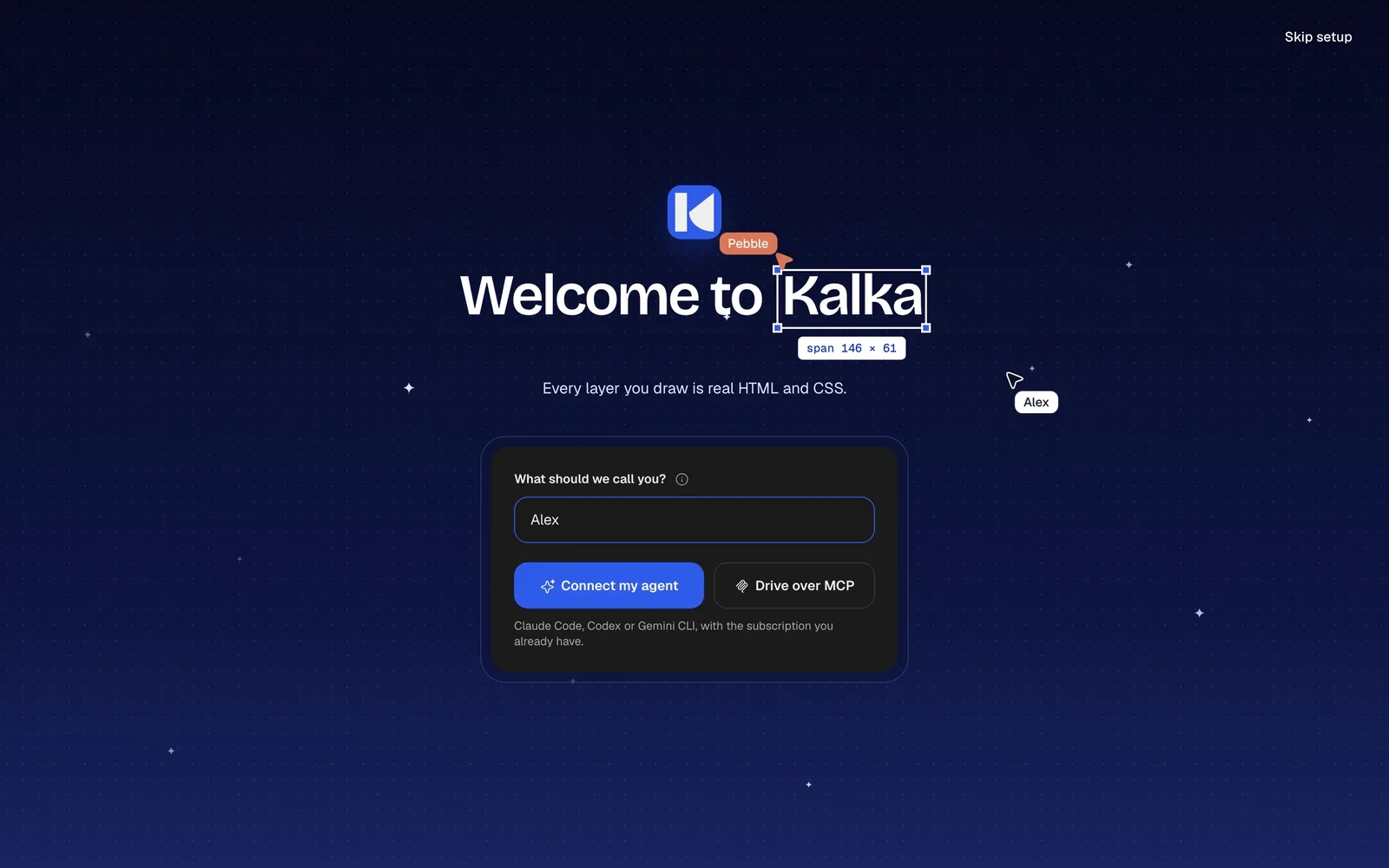
The first time Kalka opens, it asks what to call you. Your name stays on this computer; the people you share a file with see it beside your cursor. Next to yours is the cursor of Pebble, Kalka’s agent.
Then choose how you want to work with an agent:
- Connect my agent sets up the AI panel with the coding agent already on your computer, such as Claude Code, Codex or Gemini CLI, or with an API key. See Agents in Kalka.
- Drive over MCP shows how to let an agent you run elsewhere work on the canvas. See MCP and ACP.
- Skip setup goes straight to Home. You can do all of this later in Settings.
Home
Home is where every document starts.
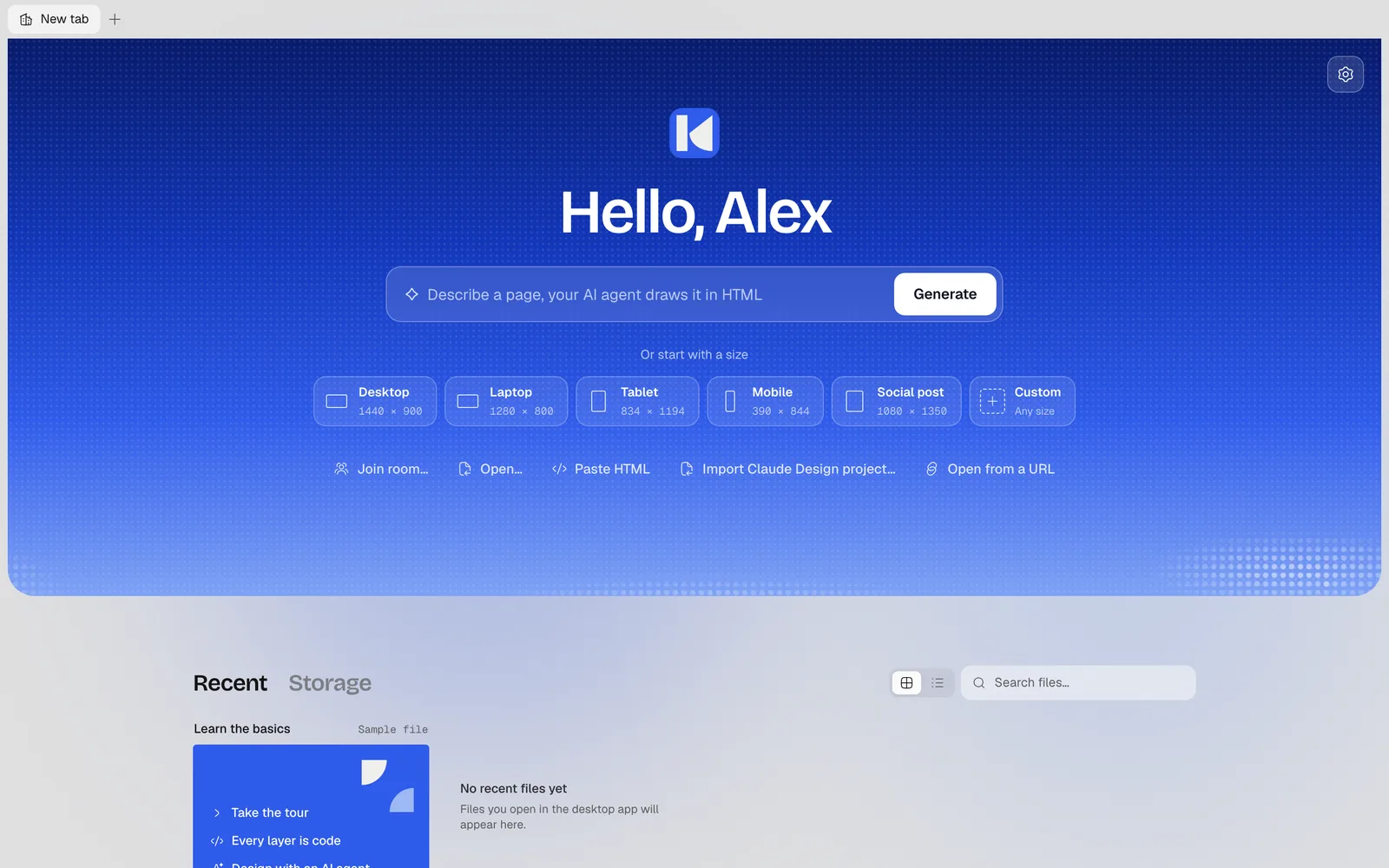
- Describe a page in the field at the top and press Generate: your agent draws it as layers. Without an agent set up, Kalka offers to set one up and keeps what you wrote.
- Start with a size: Desktop (1440 × 900), Laptop (1280 × 800), Tablet (834 × 1194), Mobile (390 × 844), Social post (1080 × 1350), or Custom for a blank canvas.
- Join room… opens a file someone shared with you, from its link or ID.
- Open… opens a
.fig,.kalkaor.penfile; Open folder… opens a Kalka folder (desktop app). - Paste HTML turns HTML from a web page or a code editor into layers.
- Import Claude Design project… opens a Claude Design export. See Import.
- Open from a URL opens a
.fig,.penor.htmlfile from anhttps://link.
Below, Recent lists the files you opened, with the last one first so you can continue it. Storage lists the files in a cloud storage workspace, if you connected one.
Learn the basics
The sample file Learn the basics sits on Home. It is one page of short lessons made of real layers. Open it, then:
- Take the tour for a quick walk through the editor.
- Every layer is code opens the Code panel beside a layer, so you see its HTML and CSS.
- Design with an AI agent shows how to connect one.
When you are ready, read Canvas and layers.