A canvas made of web pages
Each artboard on the canvas is a small web page. The browser engine inside Kalka lays out its layers and draws them, the same way it will on a live site. A flex row wraps where a browser wraps it, text breaks where a browser breaks it, and a shadow looks like the CSS shadow it is.
Artboards are sealed off from each other and from the internet: an artboard cannot run scripts or load anything from the web, so pasting HTML from anywhere is safe.
The editor
- Top bar: the document name with undo and redo, the screens of the current page in the middle, then the agent, zoom, preview and sharing.
- Left rail: the panels. AI, Instructions, Layers, Assets, Variables, Code, Folder, History, Comments and Lint (the design check), with Settings at the bottom.
- Design panel on the right: the properties of what you selected. See Properties.
- Toolbar at the bottom of the canvas.
On Windows, Linux and in the browser, the Kalka logo in the top bar opens the menus (File, Edit, View, Object, Text, Arrange). On macOS they are in the menu bar. Cmd K (Ctrl K) opens the command palette, to find any command by name.
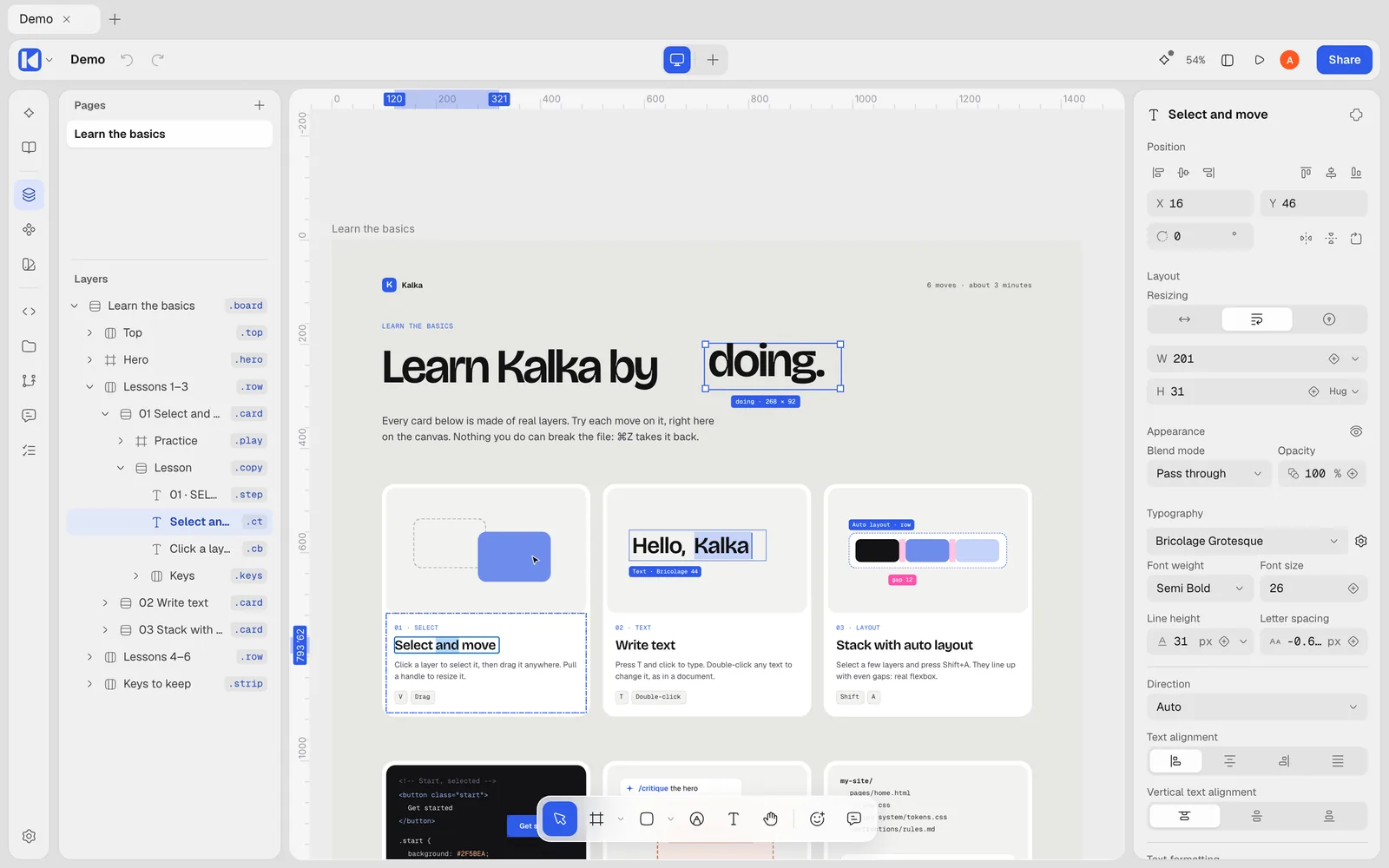
Tools
| Tool | Key | What it does |
|---|---|---|
| Move | V | Select, move and resize layers |
| Frame | F | Draw a frame: a box that holds other layers. A frame drawn on the empty canvas is an artboard |
| Section | S | Group artboards on the canvas |
| Rectangle | R | Draw a rectangle; the same menu has Ellipse (O), Line (L), Polygon and Star |
| Pen | P | Draw vector paths |
| Text | T | Click to add text and type |
| Hand | H | Pan the canvas; hold Space for it at any time |
After them come Insert icon, a search over more than 200,000 open source icons, and Comment (C). See Collaboration for comments.
Moving around
- Hold Space and drag, or use the Hand tool, to pan. Shift with the scroll wheel pans sideways.
- The zoom menu in the top bar has Zoom in, Zoom out, Zoom to fit and fixed levels; you can also type a percentage.
- Shift 1 fits everything on screen, Shift 2 zooms to the selection, Cmd 0 (Ctrl 0) goes to 100%.
- View › Rulers (Shift R) shows rulers; drag from a ruler to place a guide. View › Pixel Grid (Shift ’) shows the pixel grid when you zoom in close.
- Snapping to geometry, objects and the pixel grid is set under View › Preferences. Hold Ctrl while dragging to stop snapping for a moment.
Artboards and breakpoints
An artboard is a top-level frame, usually one screen of a page. Give it a width that matches the screen you design for, or start from a frame preset (phone, tablet, desktop, social media, paper and more) in the Design panel.
A page can show the same design at several widths. Select an artboard, then in the Design panel under Breakpoints add Tablet (810 px) or Phone (390 px), or use the + next to the screens in the top bar.
- A breakpoint shares its layers with the artboard. Adding, deleting or moving a layer in one changes all of them.
- Change a value inside a breakpoint, such as a font size or a direction, and that value belongs to the breakpoint. The Design panel shows how many values a layer has of its own there, with Reset to drop them.
- Each breakpoint follows the next wider one until you change something in it.
- Exported HTML has one page, with each breakpoint’s changes written as
@mediarules.
Pages
A document can have several pages, listed at the top of the Layers panel. Add page creates one; double-click a page to rename it; drag to reorder; right-click to delete. All of this can be undone.
The layers panel is the HTML
Every layer is an HTML element, and the layers panel shows how they nest. Select a layer and look at the HTML section of the Design panel:
- Tag chooses the element:
section,nav,h1toh6,p,a,button,ul,liand many more. Auto lets Kalka pick. Images stayimg, and vectors and icons staysvg. - Classes gives the layer class names, such as
hero card.
Classes share styles. Type a new class name and the class takes the layer’s current look. Type an existing one and the layer takes the class’s look. Change the style of a layer that has a class, and Kalka shows which values are now its own, with Update class to apply them to every layer with that class, or Reset to go back to the class.
When a layer’s name differs from its HTML, the layers panel shows its first class or its tag beside the name.
Working with layers
- Double-click a row to rename a layer, or use Rename Selection… (Cmd R, Ctrl R) to rename many at once, with numbering and patterns.
- Hide and lock layers from their row, or with Shift Cmd H and Shift Cmd L.
- Group with Cmd G (Ctrl G), or wrap the selection in an auto layout frame with Shift A.
- Press Enter to go into a frame or edit a text, Esc to deselect.
Every change, including renaming, hiding, locking and moving layers to another page, is one undo step.
The Code panel
Open Code in the left rail to see the code of the selection. Three views:
- HTML/CSS: what Kalka exports for the selected layers, following the canvas as you edit. With nothing selected, you can write HTML and add it to the page.
- Design JSX: an editable description of the layers. Edit it and the canvas updates live.
- Tailwind JSX: the selection as React components styled with Tailwind, read only.
The view you pick last is the one the panel opens with next time.
Theme and background
View › Theme switches between Light, Dark and Auto, which follows your system. In the dark theme the canvas is dark too.
By default the canvas behind your artboards is Kalka’s neutral grey. To see each page’s own background color instead, turn on Page’s own background in Settings › General. The page’s background color is in the Design panel when nothing is selected.
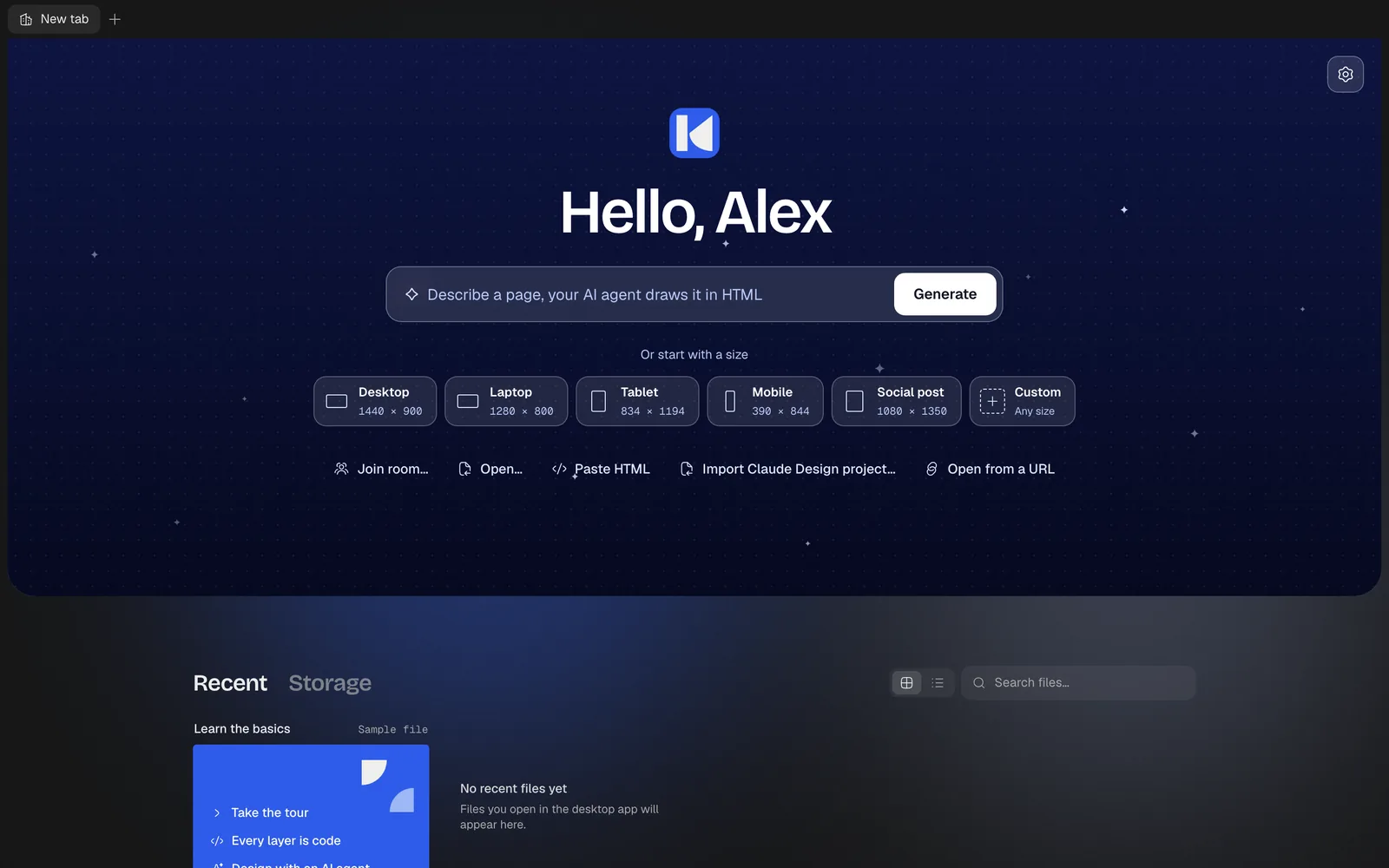
Ask the agent
Select something and press /: the AI panel opens with the selection attached, ready for your question. The right-click menu has the same thing, as Ask the agent about this. See Agents in Kalka.