Kalka’s AI panel puts an agent beside the canvas. It writes HTML and CSS, the material Kalka is made of, so what it draws arrives as ordinary layers you can select and change by hand.
Open the AI panel
Click AI at the top of the left rail, or press Cmd J (Ctrl J). To ask about something specific, select it and press /: the panel opens with the selection attached.
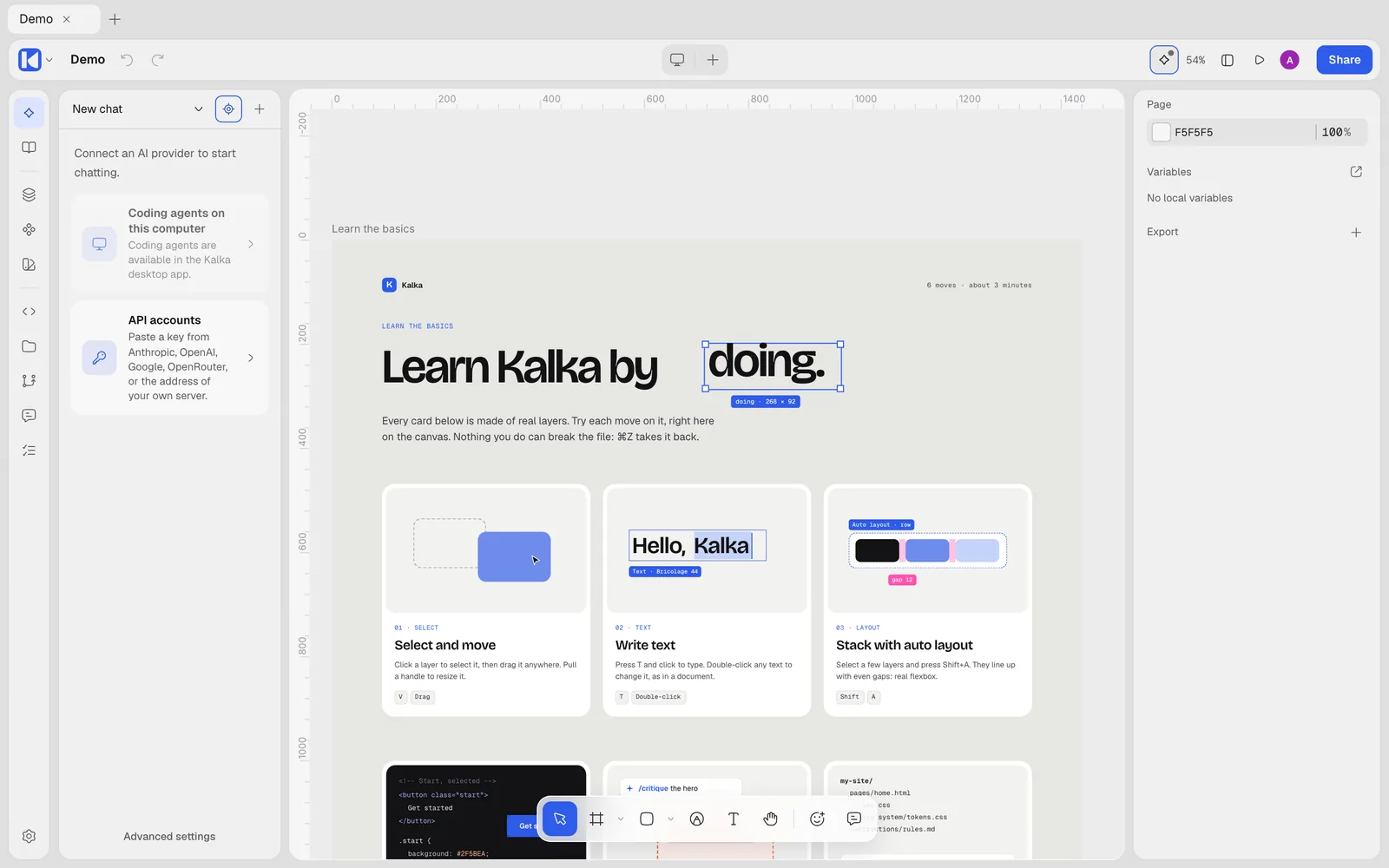
Choose the agent
The first time, Kalka offers a guided setup. You can run it again from Settings › AI & agents › Run guided setup.
The coding agent on your computer
If you already use Claude Code, Codex or Gemini CLI, Kalka can run it in the AI panel with your own subscription and model. This works in the desktop app. Kalka talks to the agent through the Agent Client Protocol (ACP) and lends it the canvas tools.
The setup checks what is installed and offers Install adapter when a small connector is missing. For reference:
| Agent | Connector | Sign in |
|---|---|---|
| Claude Code | npm i -g @agentclientprotocol/claude-agent-acp |
run claude, then /login |
| Codex | npm i -g @agentclientprotocol/codex-acp |
codex login |
| Gemini CLI | npm i -g @google/gemini-cli |
run gemini, then /auth |
Copy setup prompt gives you a message to paste into your agent so it installs what it needs itself. The agent picks its own model; when it asks for permission to use a tool, Kalka shows the request.
Pi, another coding agent, works the same way through Kalka’s own companion, @kalka/harness.
An API key
Kalka also connects directly to a model provider: OpenRouter (with a key or by signing in), Anthropic, OpenAI, Google AI, DeepSeek, Z.ai and MiniMax. Any service that speaks the OpenAI or Anthropic API works too, with its address and model name.
A model on your computer
For a local model, choose Ollama or LM Studio in the setup, or Other server for anything that speaks the OpenAI API, such as llama.cpp. No key is needed if your server does not ask for one.
Models and roles
In Settings › AI & agents, Models lists the models you set up, and Assignments chooses one for each job: the Design agent that chats and edits the canvas, Review, Fast tasks, and Vision for reading screenshots and images. Pick the model and the thinking level for a message right in the chat. Coding agents choose their own model and thinking.
Pebble
The first agent working in a document is called Pebble. That name shows on its cursor, in comments, where you can write @Pebble, and in the version history.
Before a new design, the agent asks
When you ask for something new, the agent first asks what it needs: what the business is called, who the page is for, which sections, colors to use or avoid. Questions arrive in the AI panel one at a time, each with suggested answers you pick in one click, a field for your own answer, and Skip, let the agent decide.
How the agent designs
The agent follows a design process: it reads the document, names its references, writes a short brief, sets up variables, classes and components, lays out the page, then builds and checks one section at a time before adapting the phone layout.
It also checks its work against a list of habits that make a design look machine-made: stock purple gradients, glass cards, rows of identical icon cards, a small label above every heading, glowing buttons, and more. When its palette or type matches one, it chooses again.
Seven skills are built in, and you call them in the chat by name: /direction, /landing-page, /copy, /critique, /responsive, /polish and /anti-slop.
Watch it work
The agent’s work appears block by block, in order: a frame’s background before its content, top to bottom. Each block comes out of a soft cloud of pixel dots, and before the first layer the same cloud marks where the work will land. A small badge with a loader shows what the agent is building.
Follow agents, the crosshair at the top of the AI panel, keeps the agent’s work on screen; the view only moves when the work leaves the middle of the screen.
If the motion is too much, turn on Reduce agent animations in Settings › General: new layers then appear at once. Your system’s reduced motion setting does the same.
Named agents
Several agents can work on one document at the same time. Start a message with a name, such as @Fern build the pricing section, and Fern joins in its own tab while the main chat keeps going. Up to three agents work at once, the main chat included. If an agent tries to edit a frame another one is building, it is told who holds it and works elsewhere or waits.
Named agents need a Design model connected directly, with an API key or a gateway. Their conversations last until you close the document.
Stop, undo and restore
- Stop generating in the chat box stops a reply.
- Under each reply, Revert changes undoes what that reply did on the canvas, and Restore changes brings it back. Revert and regenerate tries again.
- Cmd Z also undoes agent edits, one step at a time. Undoing one agent’s edit never undoes what another agent, or you, changed meanwhile.
- In the Comments panel, the Changes tab lists each agent’s changes per page, with Restore before this.
Rules and documents for a project
Instructions, in the left rail, holds what agents should know about this document: a summary, rules to follow, your own skills (called as /name) and reference documents (cited as @name). In a Kalka folder they are saved under instructions/, so they travel with the design.
Agents outside Kalka
Any agent that speaks MCP, such as Claude Code in your terminal or Cursor, can work on the open document too. See MCP and ACP.